
Here are some smartphone tips on How To Control Your PC Using Android or iPhone Smartphone. Today we’ll discuss a method to control smart device with a smartphone. It’s really cool to have a remote control device that controls all your devices by just sitting at your place.
So in this post, I am going to administer the same method by which you can easily control your PC Using Smartphone. Yes, it is possible and you can do it by very simple steps discussed below in this post.
How To Control Your PC Using Smartphone

Steps To Control Your PC Using Smartphone:
Just follow the below steps to have complete access to your laptop or computer using your smartphone.
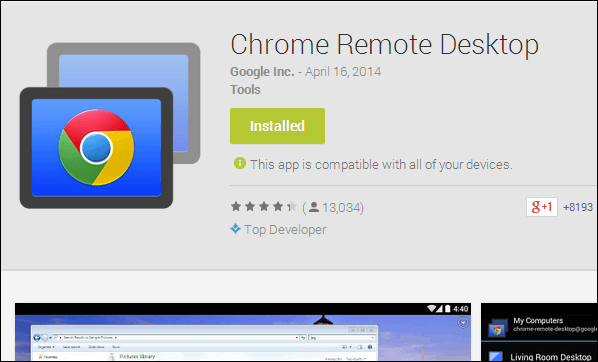
Step 1. First of download and install the app Chrome Remote Desktop on your smartphone.
Download Chrome Remote Desktop: – Android ios Now open the app, you will see the label above My Computers and below the will be your Google account which you have to log into your device.
Download Chrome Remote Desktop: – Android ios Now open the app, you will see the label above My Computers and below the will be your Google account which you have to log into your device.
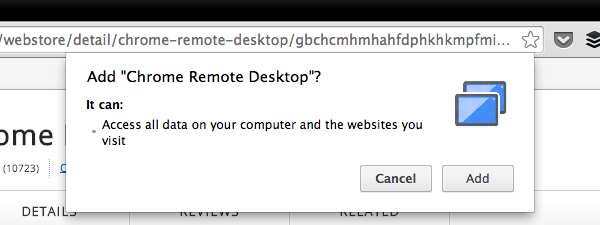
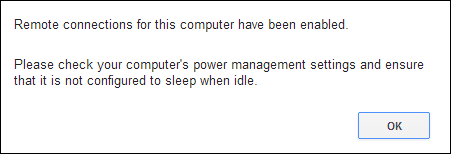
Step 2. Now there will be no computer till yet as you have not set any computer until that time. Now open Google Chrome of your PC and install the extension Chrome Remote Desktop. Now the extension will be added to your Chrome and you will now see apps like program in your taskbar (bottom of the screen).
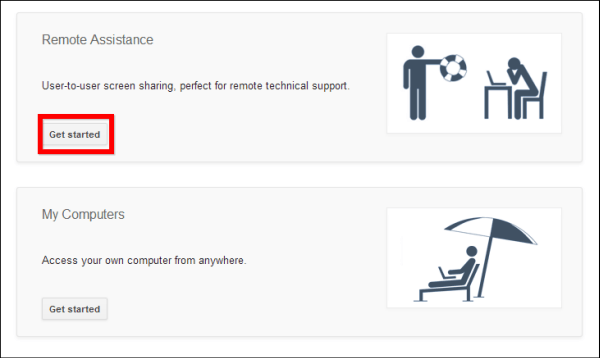
Step 3. Now click on it and you will see all apps that have installed in your Chrome and, at last, you will see Chrome Remote Desktop icon click on it. Now the installation process will begin and just proceed with the steps and a software will automatically download to your PC for remote sharing, just install it and proceed according to indicated and click on get started in access PC from anywhere.
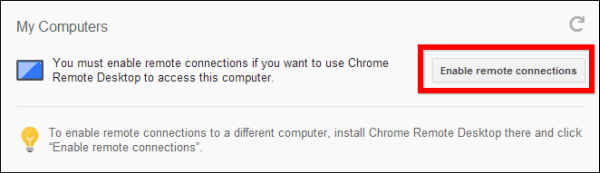
Step 4. Now you have to set a pin for Remote Computer share and after that enable the feature. Now go to your mobile the app and click on refresh at the right top and you will see your PC in a list.
Step 5. Click on it and enter your PIN there and you will now access your computer screen.
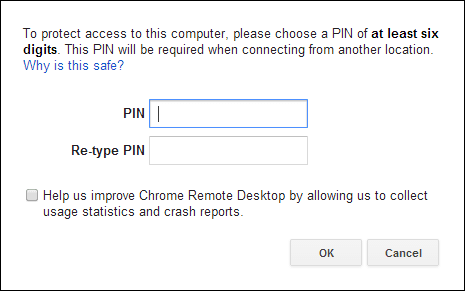
Step 6. That’s it! you are done with this, now you can do anything on your PC with your smartphone.
Using TeamViewer: Remote Control
You can access remote computers on the go with the TeamViewer: Remote Control apps for Android, iOS, Windows 10 Mobile, Windows 10, Windows Phone 8.1, Windows RT 8.1, and BlackBerry. Use your mobile device to provide spontaneous support or to remotely access an unattended computer.
Step 1. First of all, download Teamviewer:Remote Control on your Android device.

Step 2. Now download TeamViewer on your Desktop computer and run it.
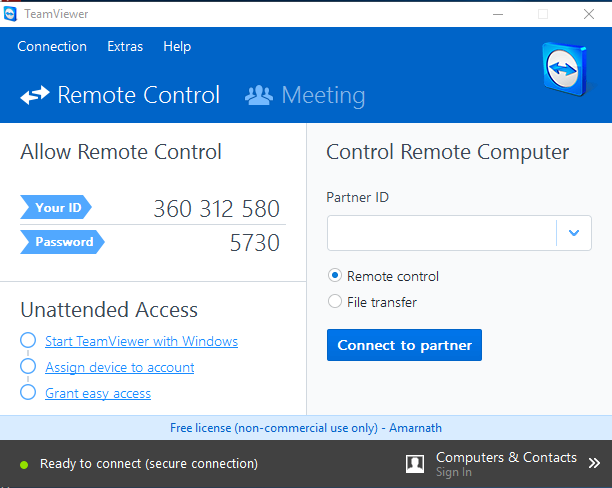
Step 3. Now in your Android, you need to enter your Partner’s ID (Desktop) in order to control the remote computer

Step 4. After that, it will ask you for a password, simply enter the password shown on your Desktop app.

Step 5. It will now show you the dialog box on Android app which will give you some information on how to control the pointer.

That’s it ! Now you will see your entire computer screen on your Android. You can control and can even do computer tasks on your Android device.

Using ApowerMirror
Well, ApowerMirror is one of the best apps for Windows computer and Android that allows users to control PC from Android. In fact, ApowerMirror is known for its screen mirroring features and it also allows users to control PC with Android screen. So, here’s how you can use ApowerMirror to control PC from Android.
Step 1. First of all, download Apower Mirror on your Windows computer. You can get the download file from here.
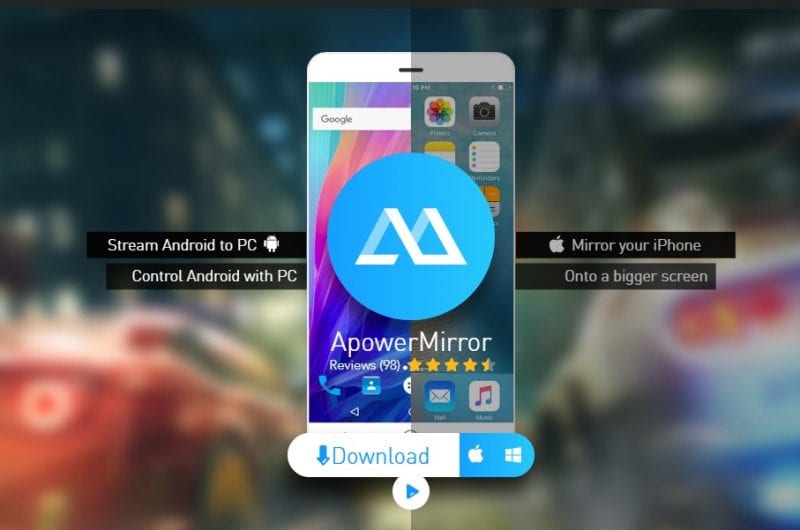
Step 2. In the next step, download & install ApowerMirror – Mirror&Control from the Google Play Store.
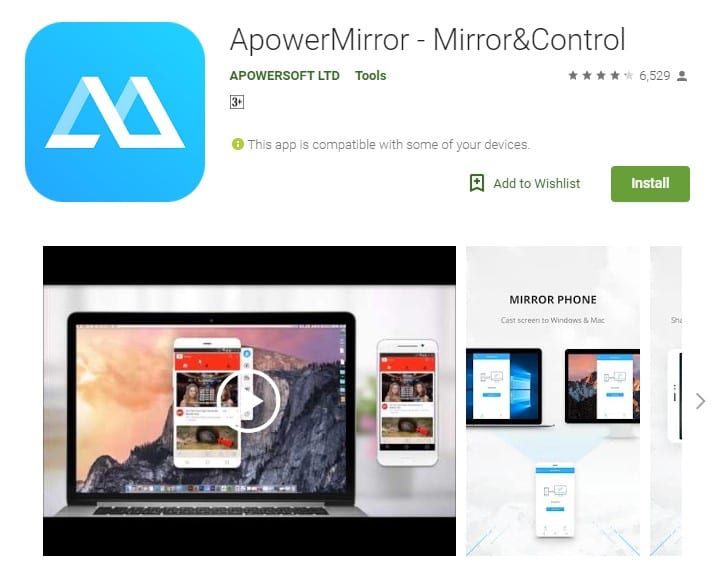
Step 3. Once installing the apps on the different platform, connect your Android and PC with the same WiFi network.
Step 4. Once done, open the Android app and then tap on the ‘Search’ button to search nearby computers. After the scan, the app will show you the PC connected with the WiFi network. Select the computer and then choose the option ‘Computer Screen Mirroring’
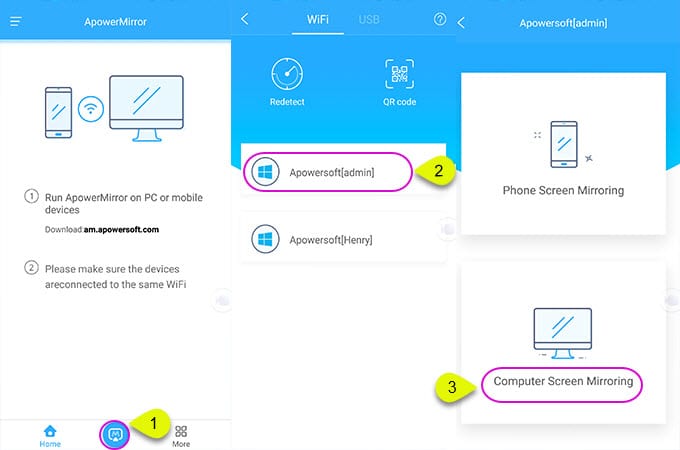
Step 5. Once done, you will see the entire PC screen on your Android. Not just that, but you can also control your computer from Android.
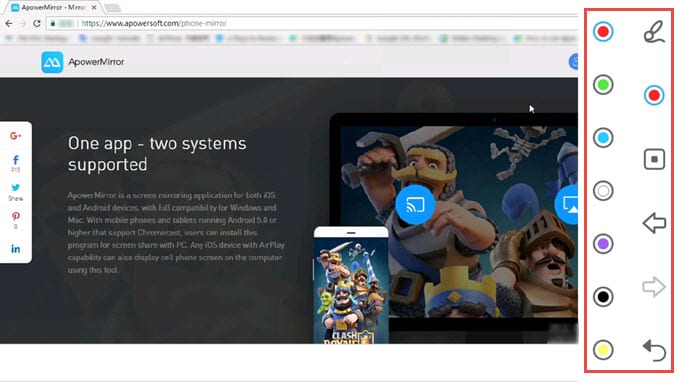
That’s it, you are done! This is how you can use Apowersoft to control your PC from Android smartphone. If you have any other doubt, then make sure to discuss with us in the comments.
Best Apps To Control PC From Android
#1 KiwiMote
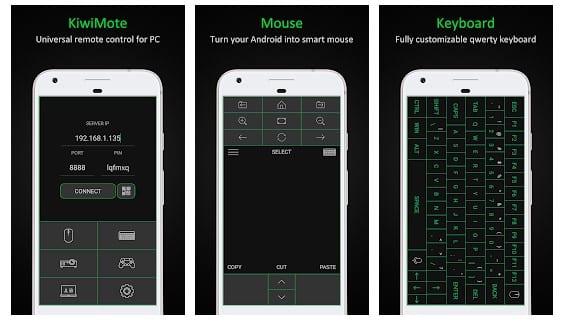
KiwiMote is one of the best apps you can have on your Android smartphone. KiwiMote basically allows users to control their computer through WiFi. The app supports all version Android above 4.0.1. Users just need to install a KiWiMote client on their desktop or laptop to control PC from Android.
The app allows users to connect both the computer and PC through WiFi router or hotspot. Users just need to scan the QR code displayed on the computer with the help of an Android device to connect to the computer.
#2 Unified Remote
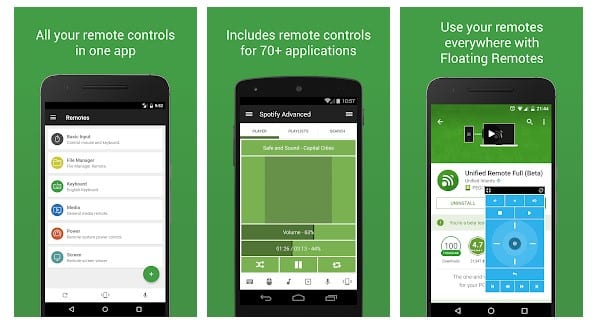
Another popular app for managing a computer with Android is Unified remote. This is the one-and-only remote control app for your computer. Turns your device into a WiFi or Bluetooth universal remote control for Windows PC, Mac, and Linux.
The app also follows the same procedure as of KiWiMote to connect with the computer. You need to download the server side desktop program to control your computer with the help of an Android device.
#3 PC Remote
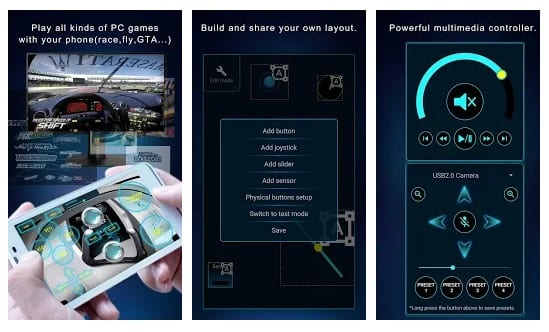
Well, this is another lightweight and simple app which runs on Windows XP, Windows 7, Windows 8, and Windows 10. PC remote can be used to control your desktop & laptop from Android via WiFi or Bluetooth. Well, you need to download the server side program on your desktop to connect to the Android device.
#4 VNC Viewer
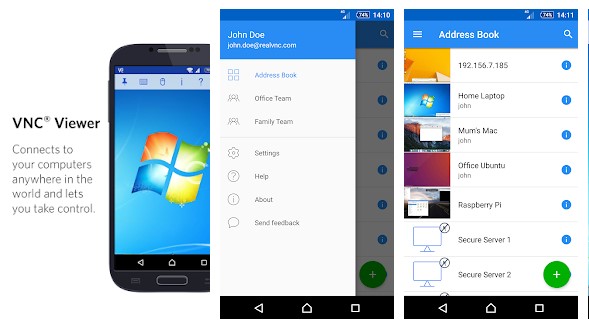
VNC Viewer is another best remote-control based Android app on the list which allows users to access the computer screen from Android. The great thing about VNC Viewer is that it comes for free and it has almost everything that users look for in a remote application. Users also get a customized keyboard and mouse layout to control the desktop screen with VNC Viewer.
#5 Remote Link
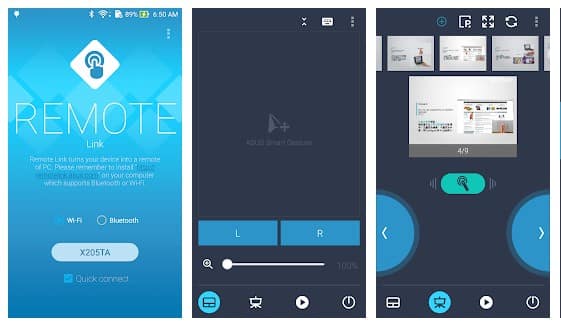
Remote Link from ASUS is another best Android app which turns your smartphone into a WiFi or Bluetooth remote control for your PC. The great thing about Remote Link is that it also has a touchpad remote, a keyboard remote, and almost everything that users looks for in a remote access app. So, Remote Link is another best app which you can use to control your PC from the phone.
#6 Splashtop Personal
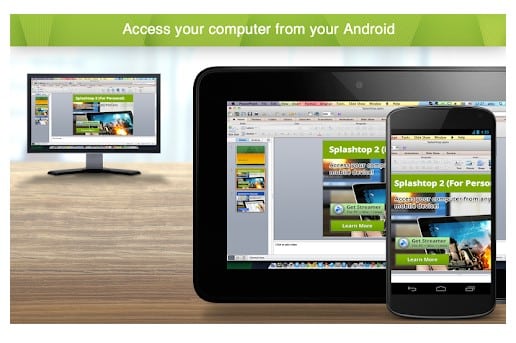
Splashtop Personal is another best free and fastest remote desktop app available for Windows and Android devices. Apart from starting a remote session, the app also offers high-resolution, real-time video and audio streaming options as well. Although the remote desktop app is made for personal use, it can be used for business purpose as well. So, Splashtop Personal is definitely the best Android app to control the PC using a smartphone.
#7 DroidMote
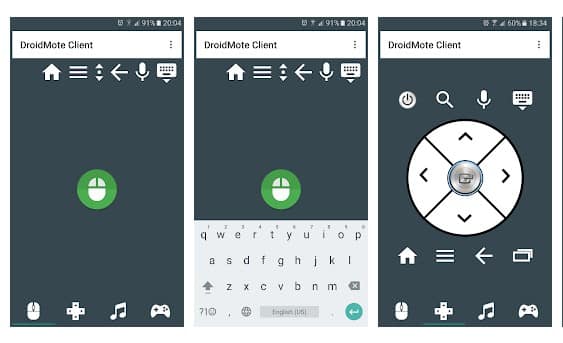
DroidMote is another top-rated Android app available on the Google Play Store that can be used to control PC from your smartphone. Guess what? with DroidMote, you can control not just Windows PC, but Linux and Chrome OS as well. To use DroidMote, users need to install the server-client on both of the devices. Once done, just enter the device ID and the app will start the remote session.
#8 Microsoft Remote Desktop
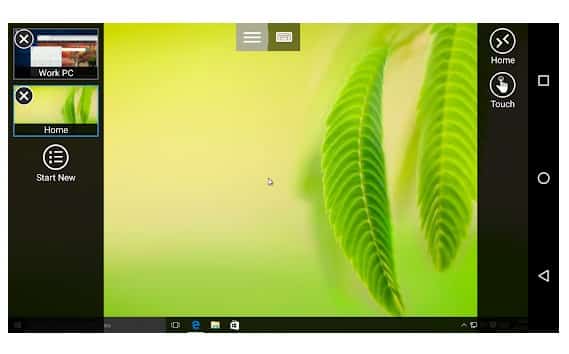
Since there are plenty of remote desktop apps available for Android device, the Microsoft Remote Desktop is less talked. Microsoft Remote Desktop is an under-rated remote desktop app available on the Google Play Store. With Microsoft Remote Desktop, you can easily connect to a remote PC or virtual apps. Apart from that, Microsoft Remote Desktop can only connect with devices running on Windows Enterprise, Windows Server and Windows Professional.
Comments
Post a Comment